How to Make Your Own Emoji (Step-by-Step, No App)
Make a custom emoji in your browser—no app install. Step-by-step transparent PNG, then size it for Discord, Slack, and more. Free tier notes included.
Short answer: you don't need a phone app. Open a browser emoji maker, build a square transparent PNG from parts (or your own photo), download it, then upload it wherever you chat. On Emoj.si the whole path is: pick parts → tweak layers → export PNG. Free and guest exports are 512 or 1024 px with a watermark; paid plans remove the watermark and unlock up to 2048 px.
I've made a lot of these for Discord servers and Slack workspaces. The process is simple once you've done it once. Here's the version I actually use.
What "make your own emoji" usually means
People mean different things by that phrase:
- A custom server emoji — a small square file uploaded to Discord, Slack, Teams, or Twitch, so everyone can type
:yourname:and see it. - A personal sticker — something you send into WhatsApp or Telegram as a sticker pack.
- A face of yourself — Bitmoji / Memoji style, but as a file you control.
This guide is mainly about (1) and (3), because those need a clean transparent PNG. For stickers, see our WhatsApp sticker size and Telegram custom emoji vs sticker posts after you've made the art.
What you'll need
- A browser (Chrome, Firefox, Safari, Edge — anything current).
- About ten minutes the first time.
- Optionally: a photo of yourself or a logo as PNG/JPG/WebP under 2 MB.
- Optionally: a paid plan on Emoj.si if you need watermark-free or 2048 px. Check pricing. You can start free.
You do not need Photoshop, Procreate, or an iPhone.
Step 1: Open the editor and start with a base
Go to emoj.si. You don't need an account to start. Drop a simple shape onto the canvas — a round face, a circle, or a blank square — from the free parts library. Keep the canvas background transparent. Transparency is what makes it look like a real emoji instead of a sticker with a white box in dark mode.
Step 2: Add the one or two things that make it readable
At chat size (often shown at 16–32 px), fine detail vanishes. The emoji that get used are the ones with a strong silhouette and one clear idea: big glasses, a coffee mug, a thumbs-up with a weird hand color, a face that looks like someone on the team.
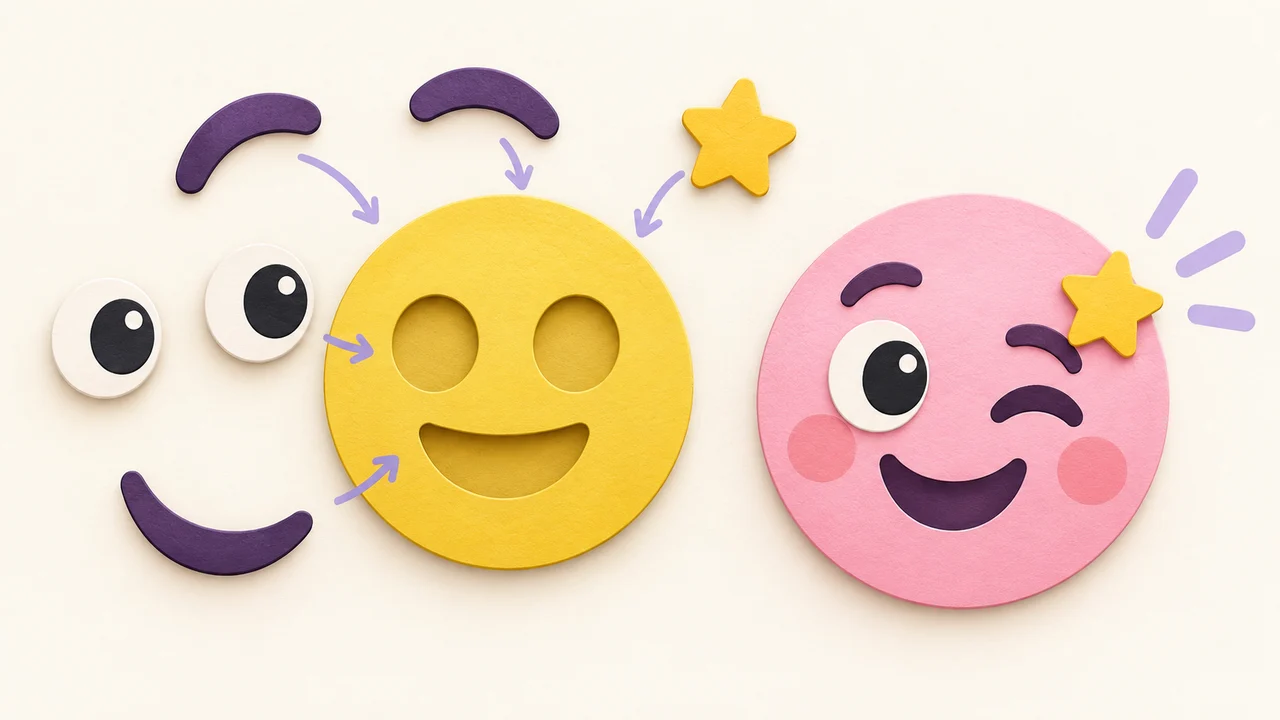
From the library, add eyes, a mouth, hair, props — whatever fits. Each piece is its own layer. Drag the corner to resize, the top handle to rotate, and reorder layers so a hand sits in front of a face if it needs to.
If you're making a reaction set for a server, design the first one carefully, then duplicate it and only swap the eyes/mouth. Four expressions cover most chats. More on that in reaction set design.
Step 3: (Optional) Upload your own image or draw
You can upload PNG, JPG, or WebP up to 2 MB as a layer. Useful for:
- cropping a face photo into an emoji (see photo to emoji),
- dropping a brand mark onto a circle,
- using a doodle you already drew elsewhere.
Drawing brushes (Pencil, Pen, Calligraphy, Chalk) are free if you want to sketch a mustache or a speech mark yourself.
Background removal: free tier can erase by hand with the eraser. One-click AI background removal is a paid feature with a monthly quota.
Step 4: Keep text short (or skip it)
One short word — "GO", "SHIP", "GG" — can work. Two long words usually turn into gray mush at 32 px. If you need a caption, put it in the message, not on the emoji.
Step 5: Export a transparent PNG
Leave the background transparent and download. On the free/guest tier you get 512 or 1024 px with a watermark. Paid unlocks watermark-free export and up to 2048 px. Exports are static PNG only — no animated GIF from Emoj.si. If you need motion later, build the still here and animate elsewhere; the animated Discord emoji guide covers Discord's GIF limits.
I usually export at 1024 even when the destination wants 128. Shrinking a larger clean PNG looks sharper than stretching a tiny one.
Step 6: Resize for the platform you're uploading to
Official rules change rarely, but always double-check the help docs before you upload:
- Discord: custom emoji work best around 128×128, under 256 KB. Formats include JPEG, PNG, GIF, WebP (and AVIF per Discord's API docs). See Discord Support's custom emoji articles, plus our Discord emoji size requirements and how to upload custom emoji to Discord.
- Slack: square images under 128 KB; JPG, PNG, or GIF; transparent backgrounds look best. Slack auto-resizes. See Slack Help: Add custom emoji and our how to add custom emoji to Slack.
- Twitch: historically 112 / 56 / 28 — details in Twitch emote sizes.
- Microsoft Teams: Teams custom emoji.
Don't upload a 2048 px file straight to Discord and hope. Downscale a copy to ~128 first so you stay under the size cap.
A 5-minute "first emoji" checklist
- Open emoj.si.
- Drop a face + two signature features.
- Keep background transparent.
- Export 1024 PNG (accept watermark on free, or upgrade for clean).
- Downscale a copy to 128×128 for Discord/Slack.
- Upload, pick a short
:name:, test it in a channel.
If the free watermark bothers you on a public server, that's the usual moment people look at pricing. Library parts, brushes, and uploads stay free either way.
Common mistakes I still make (sometimes)
- Too much detail. If it only looks good zoomed in on the editor, it will look like noise in chat.
- White background left on. Always check dark-mode chat. Transparent wins.
- Huge file with a tiny destination. Export big, then shrink for upload.
- Assuming free = no watermark. On Emoj.si it doesn't. Guest/free exports include a watermark at 512/1024.
FAQ
Do I need to install an app to make an emoji?
No. A browser tool is enough for a static custom emoji PNG.
Can I make an animated emoji on Emoj.si?
No. Emoj.si exports static PNG only. Build the still, then animate in another tool if you need a GIF.
Is there a completely free way with no watermark?
On Emoj.si, free/guest exports include a watermark. Watermark-free (and 2048 px) is on paid plans. Other tools have their own free tiers — always read what "free" includes.
What's the best size to export?
Export at 1024 (or 2048 if you're on a paid plan and need print/marketing assets), then make a 128×128 copy for Discord/Slack uploads. See also high-resolution emoji PNG for when larger files are worth it.
Can I use a Bitmoji or Memoji instead?
You can screenshot them, but getting a clean square for a server is messy. If you want a file you control without those apps, use a browser maker — we also wrote Bitmoji alternative and Memoji alternative.
Try it
Open emoj.si, make one face or one reaction, and upload it somewhere people will actually type it. The emoji that gets used is the one that exists — not the perfect one still sitting in a draft folder.
Sources / further reading: