Twitch Emote Sizes Explained: 112, 56, and 28 px
Twitch emotes come in 112×112, 56×56 and 28×28 px. Auto-resize vs manual upload, file limits, animated GIF rules, and how to make emotes that still read at 28 px.
If you have just unlocked emotes as a Twitch Affiliate, the upload screen can feel a bit cryptic. It shows three little boxes labeled 28, 56 and 112, and it is not obvious whether you need to make three files or one. Short answer: Twitch emotes come in 112×112, 56×56 and 28×28 px, and most of the time you only need to make the big one.
Everything below comes from Twitch’s own help pages: Emote Formatting & Upload Requirements, the Subscriber Emote Guide and Animated Emotes. Twitch changes this stuff occasionally, so if a number here disagrees with the upload screen, trust the upload screen.
The three sizes, and what they are for
Twitch shows the same emote at different scales depending on where it appears and how dense the viewer’s screen is. That is why it wants three versions of one image:
- 112×112 px: the largest version, and the one you should design for
- 56×56 px: the middle size
- 28×28 px: the tiny one, roughly what a lot of people see inline in chat
That 28 px version is where most emotes fall apart. A face with thin outlines, a speech bubble and a three-word caption can look great at 112 and turn into a smudge at 28. When I check an emote, I zoom the 28 px file to 100% and ask one question: can I still tell what it means in under a second? If not, I cut detail, not size.
Auto-resize vs manual mode
Twitch gives you two ways to upload a standard (static) emote.
Auto-resize mode is the default. You upload a single square PNG anywhere between 112×112 and 4096×4096 px, under 1 MB, and Twitch generates the smaller sizes for you. For most people this is the right choice. Upload something clean at 512 or 1024 px and let Twitch scale it.
Manual mode is what you get when you switch the Auto-resize toggle off. Then you upload all three sizes yourself: 28×28, 56×56 and 112×112. The Subscriber Emote Guide says the three files must be the same image, and each one must be under 100 KB. It is extra work, but it is worth it if the automatic 28 px version looks mushy. Hand-tuning the smallest size, for example by thickening outlines or dropping a tiny detail, often makes a bigger difference than anything you do at 112.
Other rules for static emotes, according to Twitch:
- PNG only
- Perfectly square (same width and height)
- A fully transparent background
- Check it at 100% so lines look sharp and any letters are readable
Animated emotes have their own limits
Animated emotes follow the same three sizes, but as GIFs:
- Auto-resize: one square GIF between 112×112 and 4096×4096 px, 1 MB max
- Manual: three GIFs (28, 56, 112), each 512 KB max
- No more than 60 frames
- It must not flash or flicker more than 3 times in 1 second
- The first frame becomes the static thumbnail unless you upload a custom one
There is also Easy Animate, which takes an ordinary square PNG (112 px or bigger, under 1 MB, not animated) and applies one of Twitch’s preset animations. If you just want your emote to bounce or shake a bit, try that before hand-building a GIF.
Where to upload
The help pages give the route as Creator Dashboard → Viewer Rewards → Emotes. You need to set an emote prefix first if you do not have one. Click + on an open slot (or Upload New to drop it in your Library), pick your file, type the emote code, and click Upload Emote. Your full code is your prefix plus the name, so with the prefix "abc" and the name Love, viewers type abcLove.
One thing that confuses a lot of people: emotes are reviewed before they go live. While waiting, they show as Pending Approval with a little watch icon, and viewers cannot see them yet. Twitch offers instant upload to Partners in good standing and to Affiliates who meet the criteria in the emote guidelines, so whether you wait or not depends on your account.
A quick way to make one in the browser
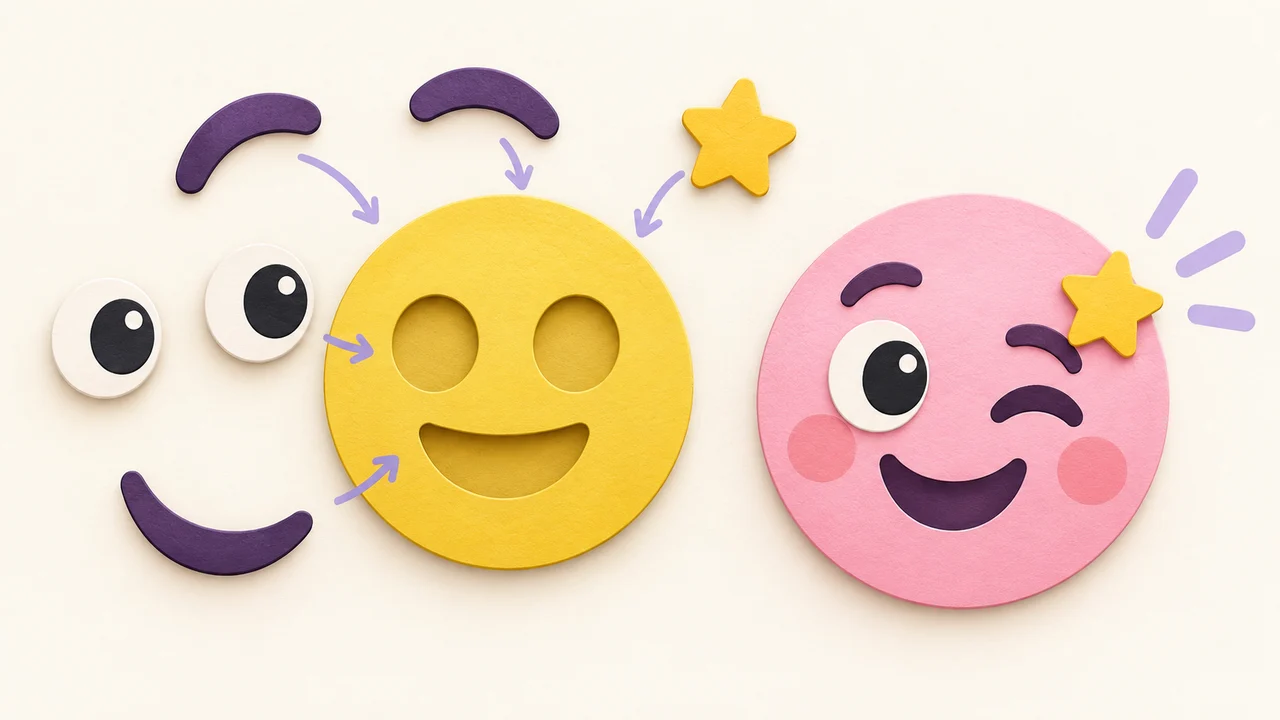
You do not need Photoshop for a decent first emote. In Emoj.si you can build a face from library parts (eyes, brows, mouths, extras), add text, or upload your own PNG, JPG or WebP up to 2 MB as a layer. Leave the background transparent and download a PNG.
To be upfront about what is free: guests and free accounts export at 512 or 1024 px with a watermark. Paid plans add watermark-free exports up to 2048 px, plus AI background removal on uploaded images. You obviously do not want a watermark on an emote your subscribers will use, so plan for that. Size-wise, 512 px is already plenty for Twitch’s auto-resize mode.
A few habits that help emotes survive 28 px:
- One idea per emote. A big expression beats a detailed scene. My post on starting with a feeling instead of accessories covers this.
- Thick, high-contrast outlines. Twitch chat can be dark or light, so test against both.
- Skip long captions. One short word at most, and make it chunky.
- Fill the canvas. Lots of empty padding makes the emote even smaller in chat.
- Check the transparency for real. A checkerboard preview is not proof. See why a transparent background is not a white background.
If you are making a set for different sub tiers, it helps to plan them together so they look related but still mean different things. This guide on designing a small reaction set walks through that. And if your community also lives on Discord, the rules there are different (128×128, under 256 KB), so see the Discord emoji size guide.
Cheat sheet
- Sizes: 112×112, 56×56, 28×28 px
- Auto-resize (static): one square PNG, 112 to 4096 px, under 1 MB
- Manual (static): three PNGs, each under 100 KB, same image
- Animated: GIF, 1 MB (auto) or 512 KB each (manual), max 60 frames, no more than 3 flashes per second
- Background: fully transparent
- Upload: Creator Dashboard → Viewer Rewards → Emotes
Make a transparent emote in Emoj.si · Twitch: Emote formatting requirements