A transparent background is not a white background
What the checkerboard means, which PNG size to choose, and what to check before putting your expression in a chat or document.
You finish an expression, download it, and drop it into a slide. It looks fine until you change the slide color. Now there is a white square around the face.
For a sticker-like result, you need a transparent background, not a white one. They can look similar in a preview, but behave very differently elsewhere.
The checkerboard is not part of the image
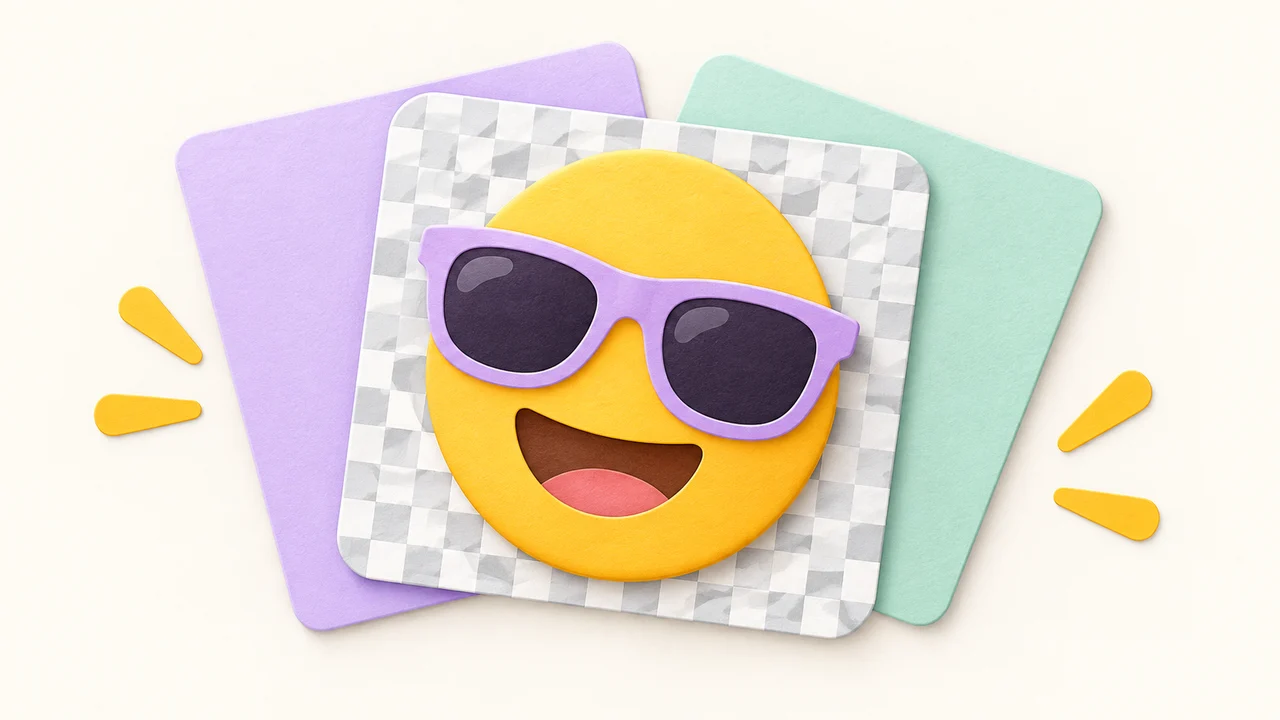
The gray-and-white checkerboard in Emoj.si shows areas with no background. It does not get exported. In the background controls, the checkerboard option means transparent; the white swatch adds an actual white background.
Choose transparency before downloading a PNG if you want to place the expression over another image or a colored page. A solid background is fine for a complete square image. It depends on where the result is going.
An uploaded photo is a separate matter. If it already has a white background, the editor does not automatically remove it. A transparent canvas preserves existing transparent areas; it does not cut out the subject of a photo.
Bigger export sizes do not repair small originals
The editor offers 512, 1024 and 2048 px output options. Free exports support 512 and 1024 px with a watermark; 2048 px and unwatermarked export require an eligible membership. See the current plans. Try a permitted size first, then check it where you intend to use it. The larger option can be useful for larger layouts.
But a tiny source image will still look soft when enlarged. Increasing the export size also enlarges its blur and jagged edges. Use a clearer part, or make that part smaller in the design, rather than expecting a 2048 px export to restore missing detail.
Fine brows and narrow lines can also disappear when the finished image is small. Check both the full-size result and the size you will actually use.
Test it on light and dark backgrounds
Place the downloaded PNG over two different background colors. This makes unwanted white boxes and pale outlines easier to spot.
If one part has a messy edge, return to the editor and hide that layer to check the rest. An opaque source needs its background removed separately; changing the canvas color will not do that.
Keep an eye on the format when saving through another app. PNG supports transparency; JPEG does not. Messaging and document tools may also reprocess the file, so check the result after inserting it.
It is an image, not a new keyboard emoji
The download is a PNG you can send as an image or use in a layout. It does not automatically join your phone's emoji keyboard or become a messaging app's sticker pack.
It also flattens the composition. Uploading that PNG later gives you one image layer, not separately editable eyes, hats and text. Make those adjustments before exporting, and download before closing the tab.